
Add and configure analytics cards
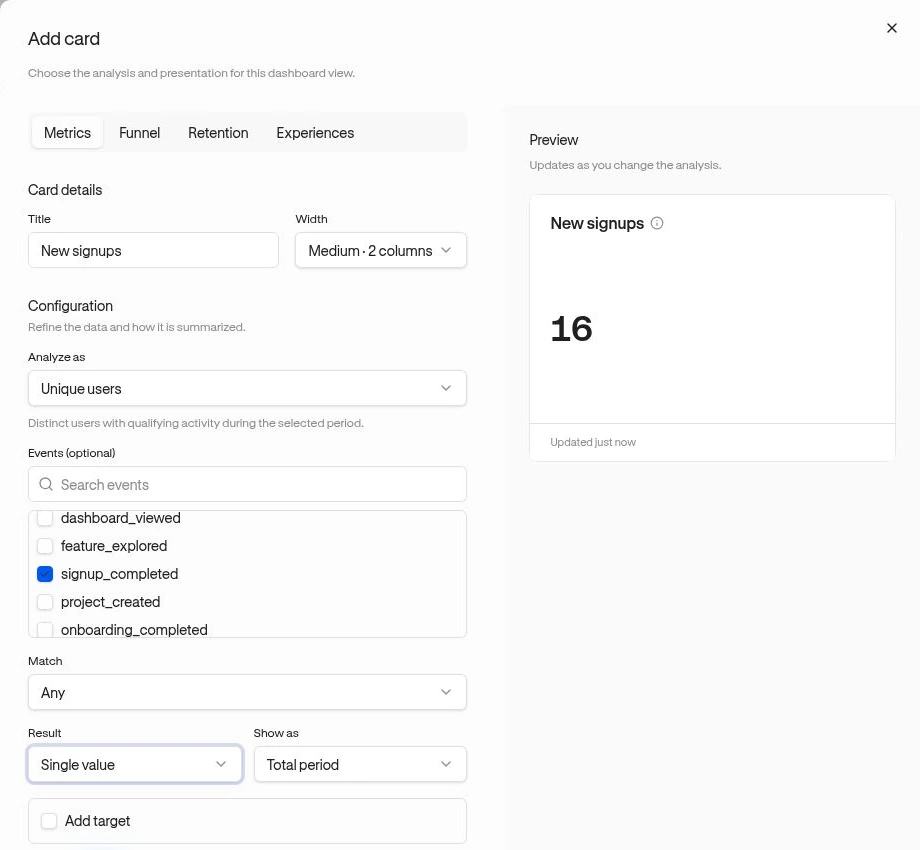
Each card answers one question. Add cards while creating or editing a dashboard. Use Preview to check the result before choosing Save card, then save the dashboard.
Choose the analysis
Section titled “Choose the analysis”| Analysis | Useful question | Required choices |
|---|---|---|
| Metrics | How many people created a project? | Analyze as, optional Events, Result, and Show as. |
| Funnel | Where do people stop during onboarding? | Saved Funnel. Its steps and conversion window come from the saved funnel. |
| Retention | Do people return after an important first action? | Start event, Return event, Cohorts, and View. |
| Experiences | How did a guide, survey, checklist, or widget perform? | Experience type, Experience, Metric, and Show as. |
Set a useful Title and Width for every card.
Example: people creating projects
Section titled “Example: people creating projects”- Choose Metrics and set Analyze as to Unique users.
- Under Events (optional), search for and select
project_created, assuming your app sends that event. - Choose Result → Trend over time and Show as → Line.
- Review the preview. Change to Single value → Total period for a headline total.
- Choose Save card, then Save dashboard.
With several events, Match offers the modes supported by the selected metric: Each separates event series, Any accepts any selected event, and All requires the user/session to perform all selected events. For a trend, matching is evaluated inside each displayed time bucket. This does not impose event order; use a funnel for that.
Other presentations
Section titled “Other presentations”Breakdown groups a metric by an available dimension such as identity, device, page, or user property. The choices vary by metric. Trend cards offer line, bars, stacked bars, or a table. Single values can show the total, most recent bucket, or previous-period comparison.
Add target places a reference target on supported non-table metric views. It does not create an experience goal or send a notification.
For retention, Current Segment comparisons compares current membership rather than a historical membership snapshot. See metric and retention definitions before interpreting it.