
Create and manage a dashboard
A dashboard saves a set of analytics cards for one site. For example, an activation dashboard can show unique users, project-creation events, and a saved onboarding funnel together.
Before you start
Section titled “Before you start”Select a site and use an Owner or Admin account to create, edit, or delete dashboards. Your site needs recorded activity; a Funnel card also needs a saved funnel.
Create a dashboard
Section titled “Create a dashboard”- Open Workspace → Dashboards.
- Choose New dashboard, or Create dashboard on the empty state.
- Use the pencil beside the heading to edit the Dashboard name. Add a description if useful.
- Choose Add card and configure its analysis.
- Choose Save card. This adds it to the dashboard draft.
- Repeat for the questions your team needs, then choose Save dashboard.
Save card alone does not save the dashboard. Confirm that the saved dashboard reopens with your cards.
Change the layout
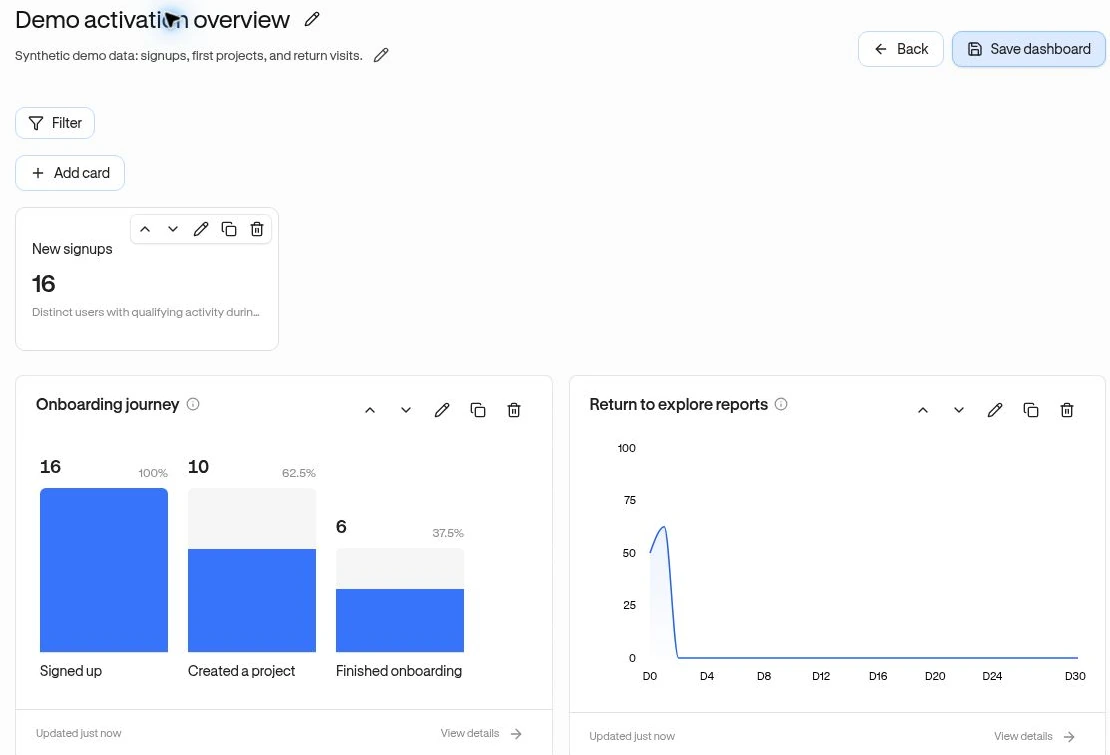
Section titled “Change the layout”Open a saved dashboard and choose Edit dashboard. Card controls let you edit, duplicate, remove, and move cards; you can also drag cards to reorder them. Choose Save dashboard after making changes. Back asks whether to discard unsaved changes.
Single-value cards appear in the key-metrics area; detailed charts appear below. Card width controls available space, not the calculation.
Manage saved dashboards
Section titled “Manage saved dashboards”The list shows the description, card count, and last update. Edit opens the saved configuration. The delete control asks for confirmation and permanently removes that dashboard; it does not delete the underlying events.
If creation is blocked, check your role and capacity.
Related: Filters · Metric definitions.