
Create a feedback survey
A survey collects feedback inside your product. Ask about a specific experience while it is still fresh, such as how easy it was to export a report.
Create the survey
Section titled “Create the survey”- Open Experiences → Surveys → Create survey.
- Enter Name, choose Build on page, and choose Open Editor.
- Edit the slide’s heading and supporting text.
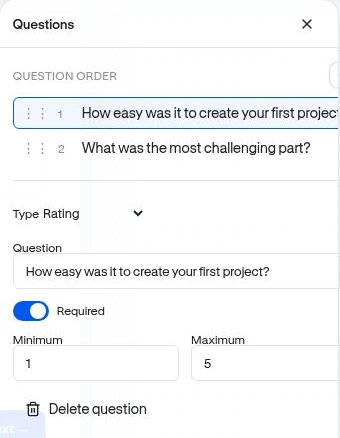
- Add question blocks from the Questions category in Blocks. Select a question on the canvas, or use Editor options → Questions to open its settings.
- Set Type, Question, and Required. Configure options or scale where needed.
- Use the slide controls to Add slide, select slides, reorder, or remove them. Drag entries in Question order to reorder questions on the current slide.
Choose a question type
Section titled “Choose a question type”| Type | Good use |
|---|---|
| Single choice | One reason for a choice or difficulty. |
| Multiple choice | Several applicable needs or obstacles. |
| Short text / Long text | An optional explanation in the user’s own words. |
| Rating | A defined numeric scale; configure Minimum and Maximum. |
| NPS | A recommendation question on the standard 0–10 scale. |
For choice questions, use Add option and keep labels distinct. For text questions, a Placeholder can suggest what kind of answer is useful. Avoid requesting credentials or sensitive personal details.
Make navigation work
Section titled “Make navigation work”Select each navigation button and set Properties → Interaction → On click to Survey: Next, Survey: Back, or Survey: Submit as appropriate. A button that only looks like “Submit” but has No action will not submit the response.
Keep required questions limited. Preview a missing required answer to confirm validation, then complete the whole survey and submit it. This is a linear slide flow; answer-based branching is not documented as a supported editor control.
Target and launch
Section titled “Target and launch”Use Review & publish to choose the audience, page, trigger, frequency, and active window. For feedback after export, use When something happens and the recorded report_exported event. Test a qualifying normal visit after publishing.
Next: Read survey responses · Feedback journey.