
Invite teammates and manage access
Teammates are the people who can access your Movcues workspace. They are separate from product visitors in People → Users.
| Role | Access in the documented workflows |
|---|---|
| Owner / Admin | View data and manage resources, publishing, team invitations, and billing. |
| Member / Viewer | View the workspace’s data and available reports. The documented create/edit/publish actions require Admin or Owner access. |
The Owner role is protected. Team settings also prevents changing or removing your own membership through the member controls.
Invite someone
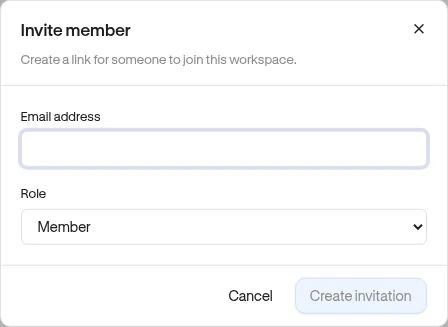
Section titled “Invite someone”- An Owner or Admin opens Settings → Team and chooses Invite member.
- Enter Email address and choose Role: Member, Viewer, or Admin.
- Choose Create invitation.
- In Invitation created, copy the invite link and share it privately with the invited person.
- Ask them to open it and sign in or create an account using the invited email.
- Confirm they appear in Team members after acceptance.
Creating an invitation gives you a link to share. Do not assume an invitation email was automatically sent.
Maintain access
Section titled “Maintain access”Use an eligible member’s role selector to change their role. The remove control asks for confirmation before removing access.
Under Pending invitations, Generate new link invalidates the previous link. Revoke cancels the invitation. The list shows its expiry, so an expired link should be replaced rather than resent unchanged.
Troubleshoot
Section titled “Troubleshoot”A duplicate invitation or existing membership can block creation. Check the member and pending lists first. Seat capacity includes active memberships and valid pending invitations, so revoke unused invitations when managing available seats.
If a teammate can see a create button but saving fails, check their role and plan capacity; visible controls alone do not grant permission.
Related: Workspaces and sites.