
Apply dashboard filters
Dashboard filters change the data you are viewing. They do not change the saved event definitions, segment rules, or funnel steps.
Example
Section titled “Example”You want last week’s project-creation activity for trial users. Open the saved dashboard and apply Date range → Last 7 days and Audience → your trial-user Segment.
Apply filters
Section titled “Apply filters”- Open a custom dashboard.
- Open Filter.
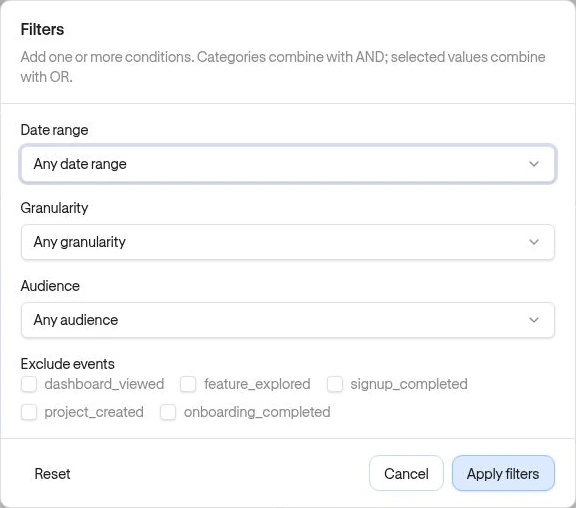
- Choose from Date range, Granularity, Audience, or Exclude events.
- Choose Apply filters and review the updated cards.
The available date presets are Today, Last 7 days, Last 30 days, and Last 90 days. Granularity groups results as Daily, Weekly, or Monthly. Audience uses a saved Segment’s current membership. Exclude events removes selected custom events from applicable calculations; it does not delete them.
Filters are viewing controls and are not saved as dashboard defaults. Reopening the dashboard starts with its normal viewing defaults.
Which cards use each filter?
Section titled “Which cards use each filter?”| Card type | Applied controls |
|---|---|
| Metrics | Date range, granularity, audience, and excluded custom events. |
| Funnel | Date range and audience; steps and conversion window come from the saved funnel. |
| Retention | Date range, granularity, audience, and excluded custom events. |
| Experiences | Date range. Audience and excluded-event filters do not narrow these cards. |
Do not assume every filter changes every card.
Check what changed
Section titled “Check what changed”A smaller audience usually means a smaller count. A longer time bucket can combine several days into one point. Review both before interpreting a change as product improvement.
Other screens have their own filters. For example, funnels use Complete within and Analyze users, while the user directory uses Last active for identified users. A filter on one screen is not a global filter for the whole product.
Related: Card configuration · Missing data.