
Troubleshoot an experience that does not appear
A preview can render even when a normal visitor does not qualify for delivery. Test the published experience outside the live editor using an account and page that should match.
Check in order
Section titled “Check in order”- Publication: confirm the experience is Live, not Draft or Paused. If you edited it, publish the revised draft through Review & publish.
- Connection: select the right site and run the live SDK test. The product must use this site’s snippet and configured domain.
- Audience: open the saved Segment and confirm the test visitor is a current member. Check exclusions in combined rules.
- Page: confirm the normal product URL matches the experience’s saved page rules. Review Allowed origins if configured.
- Trigger: reach the page, perform a fresh selected custom event, or use the configured explicit launch action. A manual trigger does not display automatically.
- Schedule: check start/end times and whether the active window has passed.
- Frequency: the test user may already have seen it. Check Only once, session limits, cooldown, and maximum impressions.
- Target: for an anchored step or hotspot, open the live editor and confirm the intended element is Found on current page in the relevant user state.
- Competing experiences: a current guide or higher-priority eligible experience may defer another. Check orchestration rather than adding more launches.
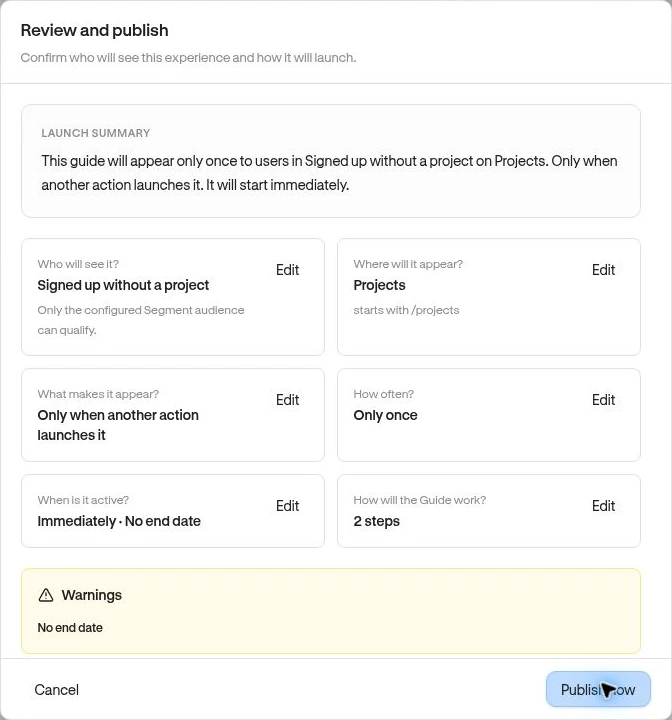
Publishing is blocked
Section titled “Publishing is blocked”Read Needs attention in the review. Fix missing targets, invalid Segment/Page references, incomplete survey questions, and unavailable linked Guides. A broad automatic launch requires its explicit acknowledgement. Check role and plan limits if the server rejects an otherwise valid configuration.
Survey is visible but has no responses
Section titled “Survey is visible but has no responses”Check that the final button uses Survey: Submit, that required questions can be answered, and that you are reading the correct Results date range. A showing or an in-progress answer is not a submitted response.
Checklist is missing or a task stays incomplete
Section titled “Checklist is missing or a task stays incomplete”Check audience/page eligibility and whether that identity permanently dismissed or acknowledged completion. Verify each task’s Complete when rule. Opening a destination does not satisfy a Segment-based completion rule until the required behavior is recorded. A Launch Guide action needs a published, available Guide.
If the editor itself will not open, allow popups and launch a fresh session on the configured product origin. Keep the visible error and reproduction steps for support; do not share the editor-session URL.