
Explore product events
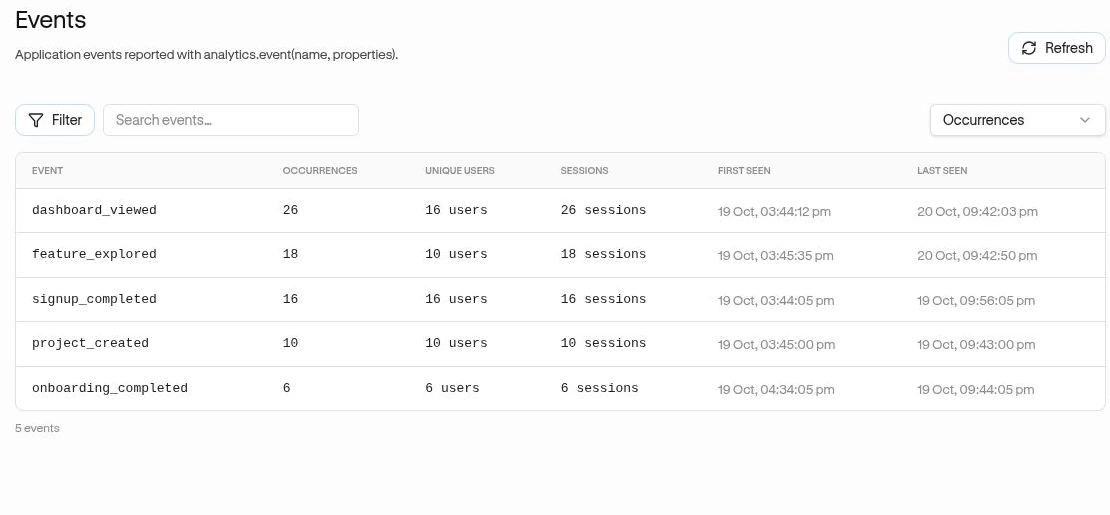
Observe → Events lists the custom actions your product sends to Movcues. An event such as report_exported can represent a successful outcome. Automatic clicks and page views are different signals; they do not become named product events in this list.
Example
Section titled “Example”Your team wants to understand report exports. First ask a developer to send report_exported after a successful export, with useful non-sensitive details such as the file format. Then inspect who uses it and where it happens.
Explore an event
Section titled “Explore an event”- Open Observe → Events for the correct site.
- Use Search events… to find the exact event name.
- Use Filter to choose a Date range or Segment. Sort by Occurrences, Unique users, Sessions, or the other available choices.
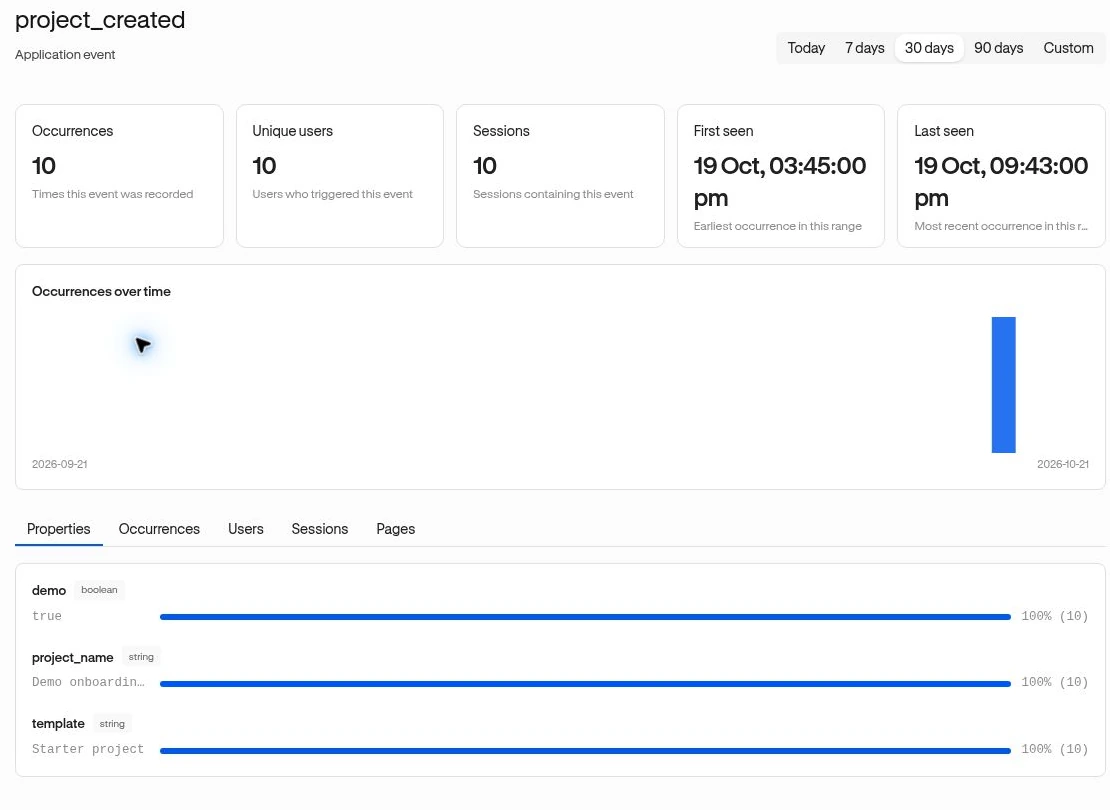
- Open the event to inspect its details and date range.
- Browse Properties, Occurrences, Users, Sessions, and Pages.
Occurrences counts each recorded instance. Unique users counts distinct identities; Sessions counts visits containing the event. Ten exports by one user are not ten users.
Inspect the details
Section titled “Inspect the details”Properties summarizes the details attached to the event, such as format. An occurrence opens its timestamp, page context, and supplied values. From there, open View session or the available user/visitor profile link to understand its context.
A missing property means it may not have been sent, or may not exist on the selected occurrences. It is not a field you can fill in for past events from this screen.
Reuse what you learned
Section titled “Reuse what you learned”Use verified event names in segments, funnels, analytics cards, and experience triggers. If the event has never arrived, follow Missing data and the developer Custom events guide.