
Build a multistep guide
A guide connects several pieces of guidance into one sequence. Use it for a task that needs ordered help, such as creating a first project and inviting a teammate.
Build the sequence
Section titled “Build the sequence”- Open Experiences → Guides → Create guide and choose the build page.
- Edit the first step’s content in the canvas.
- Choose Add step and select Anchored card or Modal.
- Use the step controls to switch steps. The step’s actions let you reorder or remove it; at least one step remains.
- For every anchored step, use Open live editor to select the product element. A Modal step does not need an anchor.
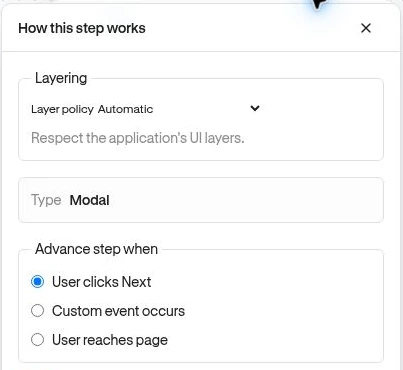
- Open Editor options → How this step works to configure progression and behavior.
Choose when a step advances
Section titled “Choose when a step advances”| Advance step when | Use when |
|---|---|
| User clicks Next | Reading the explanation is enough to continue. |
| User clicks target element | The person should use the highlighted control. Anchored steps only. |
| User hovers target element | A pointer interaction is intentional and suitable for the audience. Anchored steps only. |
| Custom event occurs | The product should confirm an outcome before continuing. Select an existing Event. |
| User reaches page | The next stage begins at a saved Page’s matching paths. |
For example, a click on Create project can open a form without saving it. Use the outcome event project_created when successful creation matters. Custom-event and route choices need recorded events or saved Pages and can require an advanced plan.
Placement and navigation
Section titled “Placement and navigation”For anchored steps, review placement, alignment, distance, pointer, and whether the user can close the guide. Select every anchor on the actual page where it appears. If a later step is on another route, test the full journey using normal product navigation.
A missing target can prevent a step from appearing. Do not use a modal simply to hide an unresolved anchored target; choose the format that fits the task.
Verify
Section titled “Verify”Preview each step, then test forward, back, close, and the configured advancement action. Confirm that the last step completes the guide. Guide completion measures finishing guidance, not necessarily achieving a business outcome.