Find users and understand their activity
People → Users helps you investigate who is using your product. These are product visitors, not the teammates invited to your Movcues workspace.
Choose the right list
Section titled “Choose the right list”| List | Meaning | Available narrowing |
|---|---|---|
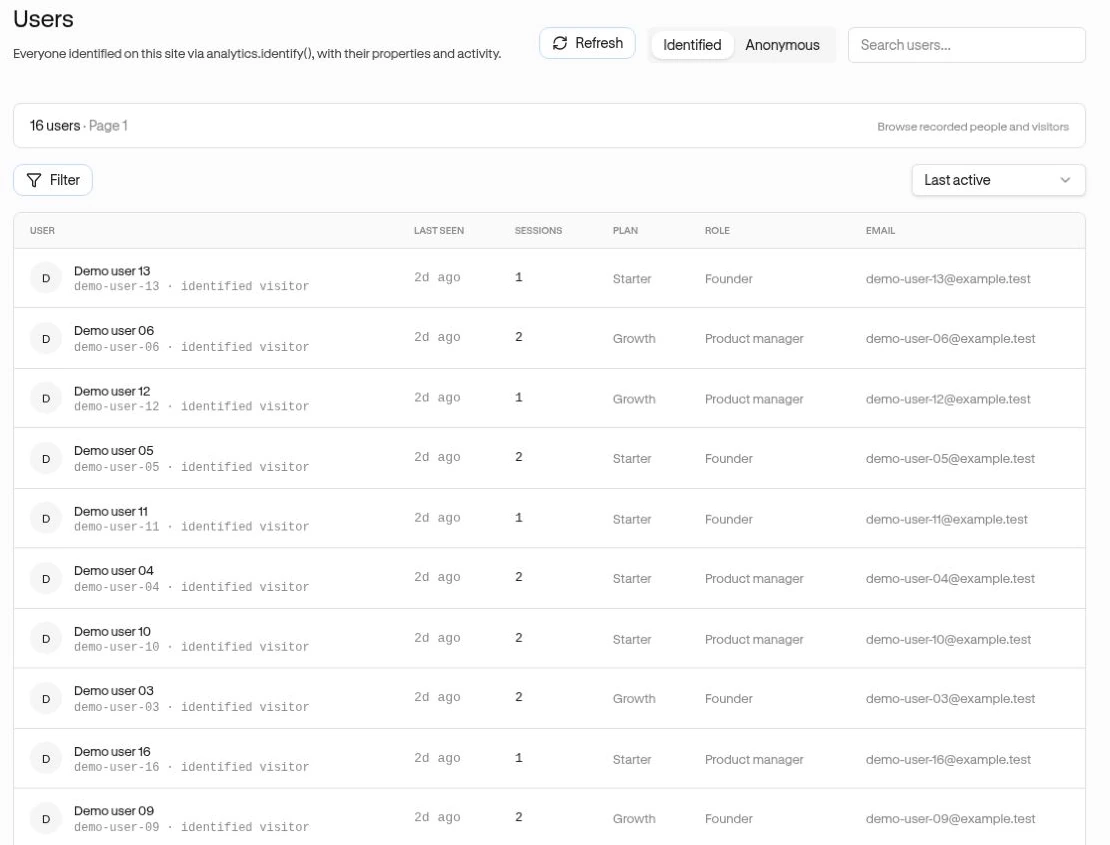
| Identified | Your app has sent an internal account ID using the SDK. | Search users…, Last active, Segment, and sort controls. |
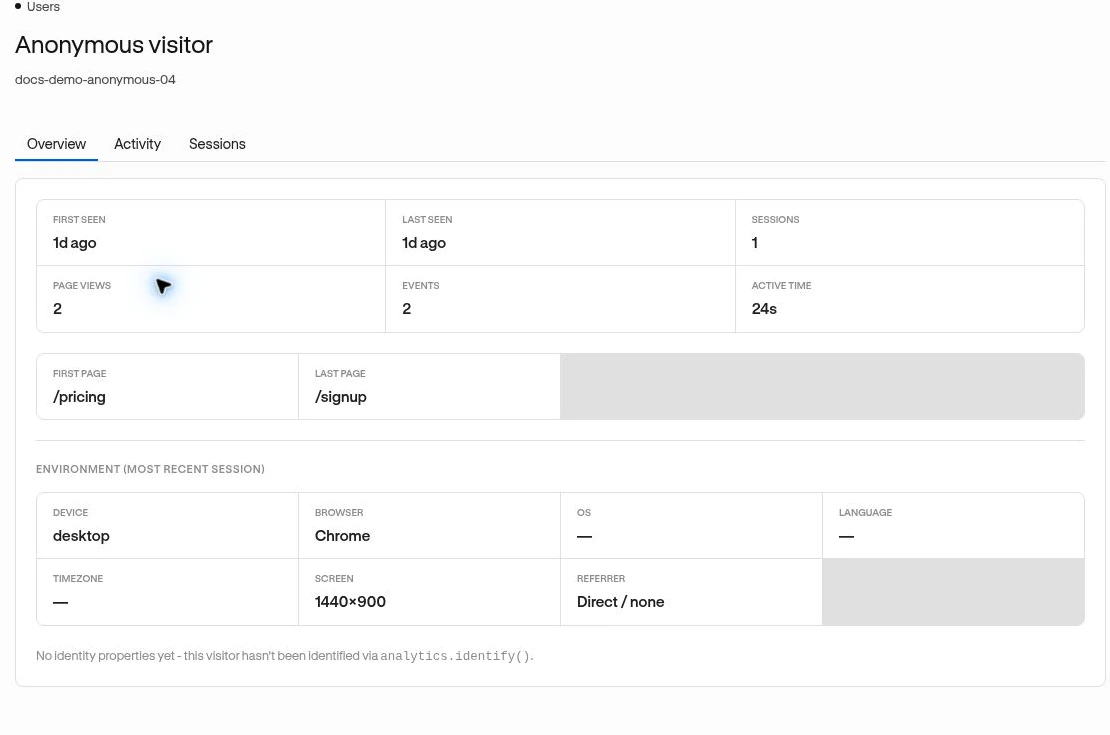
| Anonymous | Recorded visitors without a known account identity in this directory. | Search by anonymous id… and pagination. |
The anonymous list does not have the identified list’s date and Segment filters.
Inspect a profile
Section titled “Inspect a profile”- Select the right site and open People → Users.
- Choose Identified or Anonymous.
- Search or browse, then open a person.
- Review Overview for the recorded summary and environment.
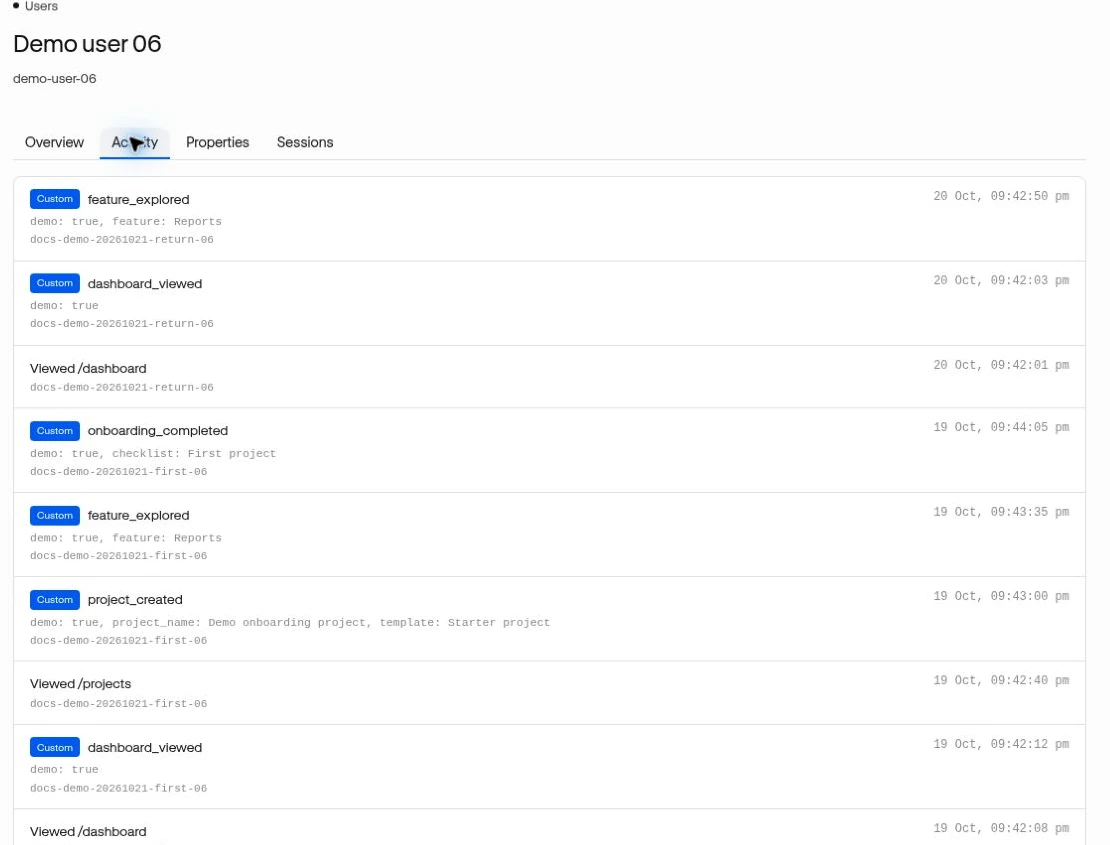
- Use Activity to inspect recorded actions and Sessions to open a visit’s timeline.
- For an identified account, use Properties to inspect values your app supplied, such as plan or role.
Example: a trial customer reports trouble exporting. Find their account, inspect the recorded activity and latest session, then check whether report_exported occurred. The absence of an event is only useful if you know the event is implemented correctly.
Understand identity
Section titled “Understand identity”Movcues cannot infer an account from a page visit. Your developer supplies it after sign-in through Identify users. Properties here are recorded account context, not an editable CRM record.
Anonymous activity and identified activity can remain separate. Do not assume that identifying a browser retroactively transfers all its earlier activity to the account. Logging out or switching accounts must clear identity appropriately in the product integration.
Related: Sessions · Segment conditions · Workspace team access.