Review and manage segment membership
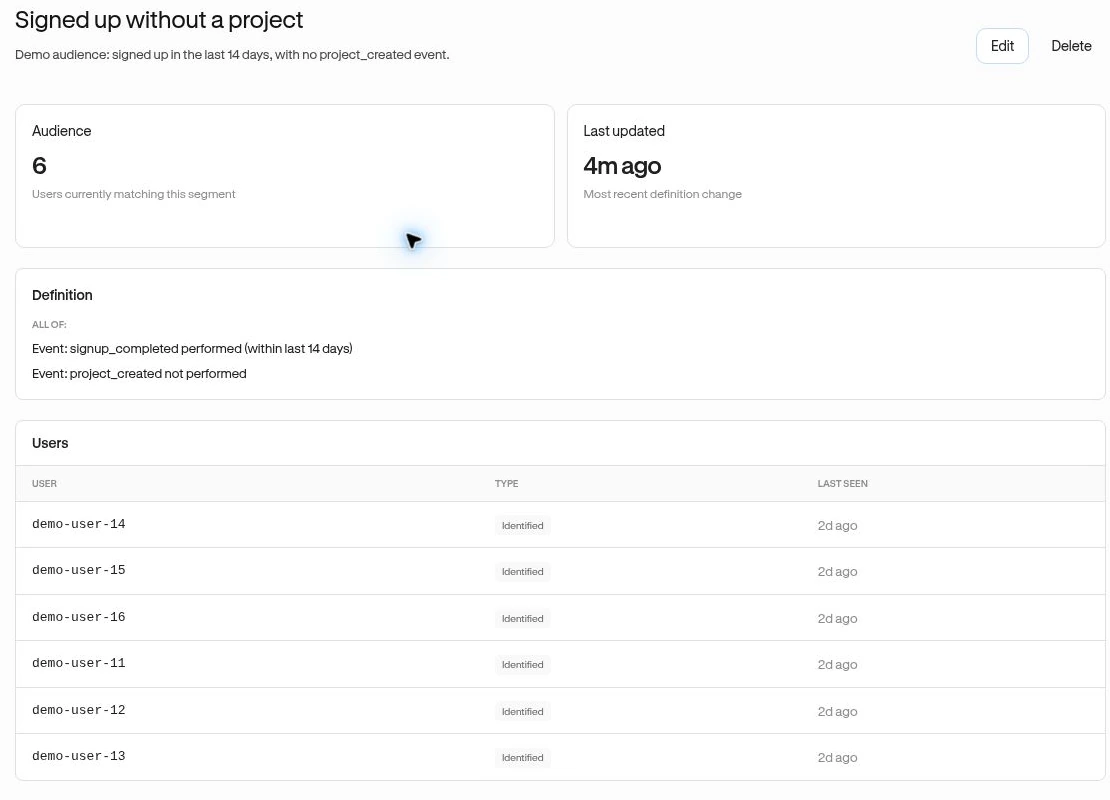
The Audience count is the number of people currently matching a segment. Last updated refers to a definition change, not the last time someone joined.
Inspect a segment
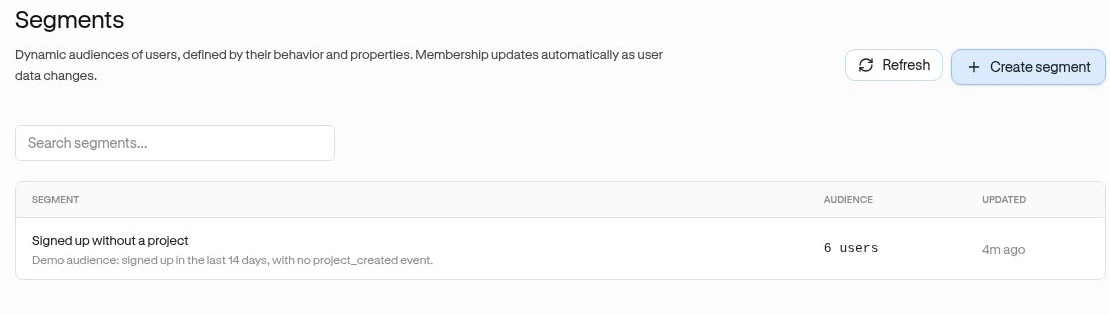
Section titled “Inspect a segment”- Open People → Segments. Search by name if needed.
- Open a segment and read its Definition.
- Inspect the Users list and open a member’s profile to check their recorded activity.
- Use Previous and Next when there are more members.
Example: a “Signup without project” audience should lose a member after their project_created event is recorded, provided the conditions describe that missing action.
Edit or delete
Section titled “Edit or delete”Use Edit to update the name, description, or rules, then choose Save changes. Check the new audience before using the segment in a launch.
Delete removes the saved segment after confirmation. It does not remove users or their event history. Before deleting, check experiences, analytics filters, and checklist completion rules that use it. A missing referenced audience does not become “Everyone.”
Why membership changes
Section titled “Why membership changes”New activity, updated user properties, rolling time windows, and changes to Page definitions can alter who matches. Current-membership filters can therefore change past-looking reports too. Use a fixed date range for a funnel cohort when you need a stable analysis period, while remembering its results are still recomputed from data.
If the audience is unexpectedly empty, simplify the conditions one at a time and confirm the inputs under Events and Users.
Related: Audience targeting · Funnel cohorts.