
Build an onboarding checklist
A checklist gives users a persistent set of onboarding tasks. Each task has an action and a separate completion rule: where it takes someone is not always what proves they finished.
Create and organize tasks
Section titled “Create and organize tasks”- Open Experiences → Checklists → Create checklist.
- Enter Name, choose a Preset (Default, Minimal, Soft, or Compact), and choose Open Editor.
- Select Checklist content to edit the title and description.
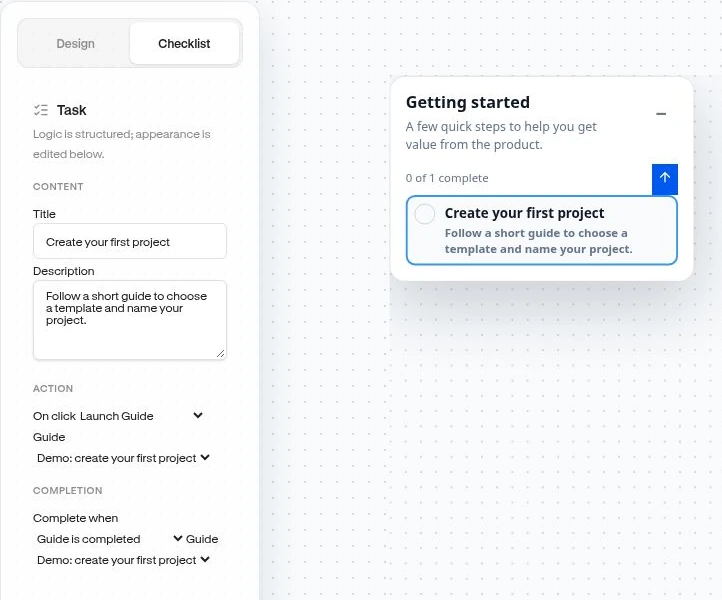
- Use Add task, then select the task to edit its Title and Description.
- Set On click and Complete when for each task. Use the task actions to reorder or delete tasks.
Choose action and completion separately
Section titled “Choose action and completion separately”| Setting | Available choices |
|---|---|
| On click | No action, Launch Guide, Navigate in this tab, Open URL in new tab. |
| Complete when | When clicked, Matches saved Segment, Guide is completed. |
Example: “Create a project” can navigate to /projects/new, while completion uses a Segment whose users performed project_created. Marking it complete When clicked would only prove that the task was selected.
Launch Guide requires a published, available guide. Publish or resume it before publishing the checklist. Navigate in this tab stays within the configured site; Open URL in new tab is the separate link action. No action is a click-to-complete task and disables the completion selector.
Configure behavior
Section titled “Configure behavior”In Checklist settings, choose Position, Task order → Any order / Sequential, and Initial state → Expanded / Collapsed. Sequential order locks later unfinished tasks until earlier ones complete. Decide whether to Allow permanent dismissal and Show remaining count.
Edit Completion state for the message shown after all current tasks complete. Use the canvas Progress → Empty / In progress / Complete and View → Expanded / Collapsed / Completion controls to inspect states. These simulate the design and do not complete a real user’s tasks.
Publish and verify
Section titled “Publish and verify”Use Review & publish to set audience, pages, and the active window. Checklists do not use the ordinary widget trigger and repeat-frequency settings. Progress is kept for the visitor identity; dismissal or completion acknowledgement can hide it on later visits.
Test the task destination and actual completion rule with a qualifying user. Adding or changing tasks can affect the remaining work shown to existing users.
Related: Segments · Guide progression · Publishing.