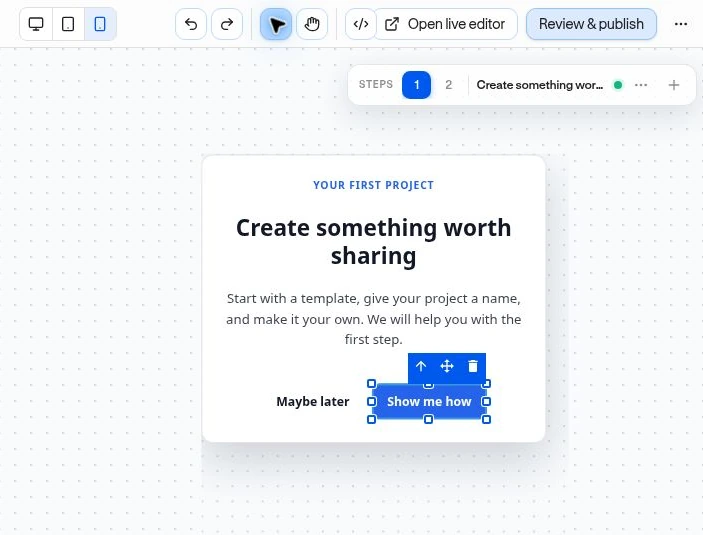
Edit content, layout, and buttons
The dashboard editor controls your experience’s content and appearance. The live editor checks that content against your real product and selects page elements.
Example: a report announcement
Section titled “Example: a report announcement”Create a short message with a heading, a sentence explaining the report, and one button to open it. Avoid making the message larger than the decision it supports.
Edit the canvas
Section titled “Edit the canvas”- Open an experience’s editor.
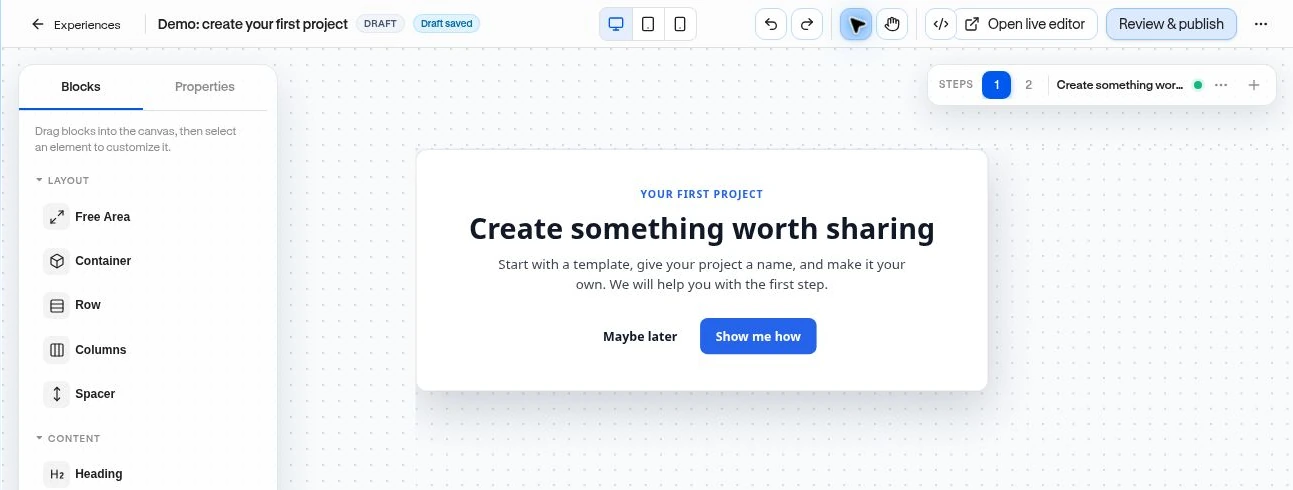
- In Blocks, drag a Heading, Text, Image, or other available block into the canvas. Container, Row, and Columns help organize layout.
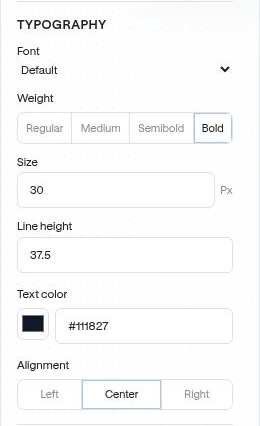
- Double-click editable text to change it. Select a block and open Properties to change the available layout, spacing, typography, colors, borders, and shadow controls.
- Use the component hierarchy to select a surrounding container when you want to change a group rather than a text element.
- Check Desktop, Tablet, and Mobile previews. Adjust Widget size where available; banners keep full width.
- Use Undo, Redo, the Hand tool, or canvas zoom to work comfortably. Panning and zooming change your editing view, not the published widget’s size.
Free Area supports free placement; ordinary rows and columns provide a more predictable structure for compact messages. Test any freely positioned content at smaller widths.
Configure a button
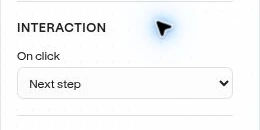
Section titled “Configure a button”Select the primary button and open Properties → Interaction → On click.
- Widgets offer Dismiss experience, Open URL, or Track event.
- Guide buttons use Next step; the guide’s progression settings determine when advancement occurs.
- Survey buttons offer Survey: Back, Survey: Next, and Survey: Submit, as well as general actions.
- The secondary action dismisses ordinary widget/guide experiences.
A Track event action records the configured event when selected. It does not prove a separate product task succeeded. For example, use announcement_clicked for the button, and let the product send report_exported after an actual export.
Save and check
Section titled “Save and check”Changes autosave. Wait for Saved, and resolve any Autosave failed message before leaving. For advanced authored markup, Toggle HTML and CSS editor opens code fields; Apply HTML and CSS validates and applies changes. Keep this for a developer and preserve survey/checklist controls.
Autosave updates the draft. Review and publish makes it live.