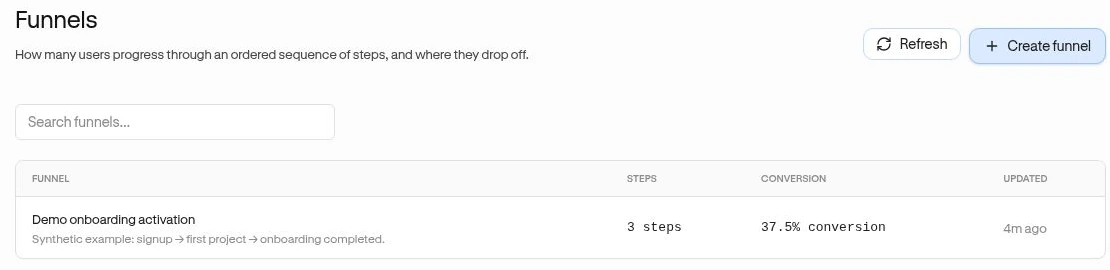
Create an ordered funnel
A funnel measures how many people complete a sequence in order. Use it to find where a journey stops, such as signup followed by project creation and a teammate invitation.
Before you start
Section titled “Before you start”Use an Owner or Admin account. Your selected site needs recorded custom events or saved Page definitions for the steps you want to measure. Dashboard funnels are separate from the SDK’s in-session defineFunnel() API.
Create the funnel
Section titled “Create the funnel”- Open Observe → Funnels and choose Create funnel.
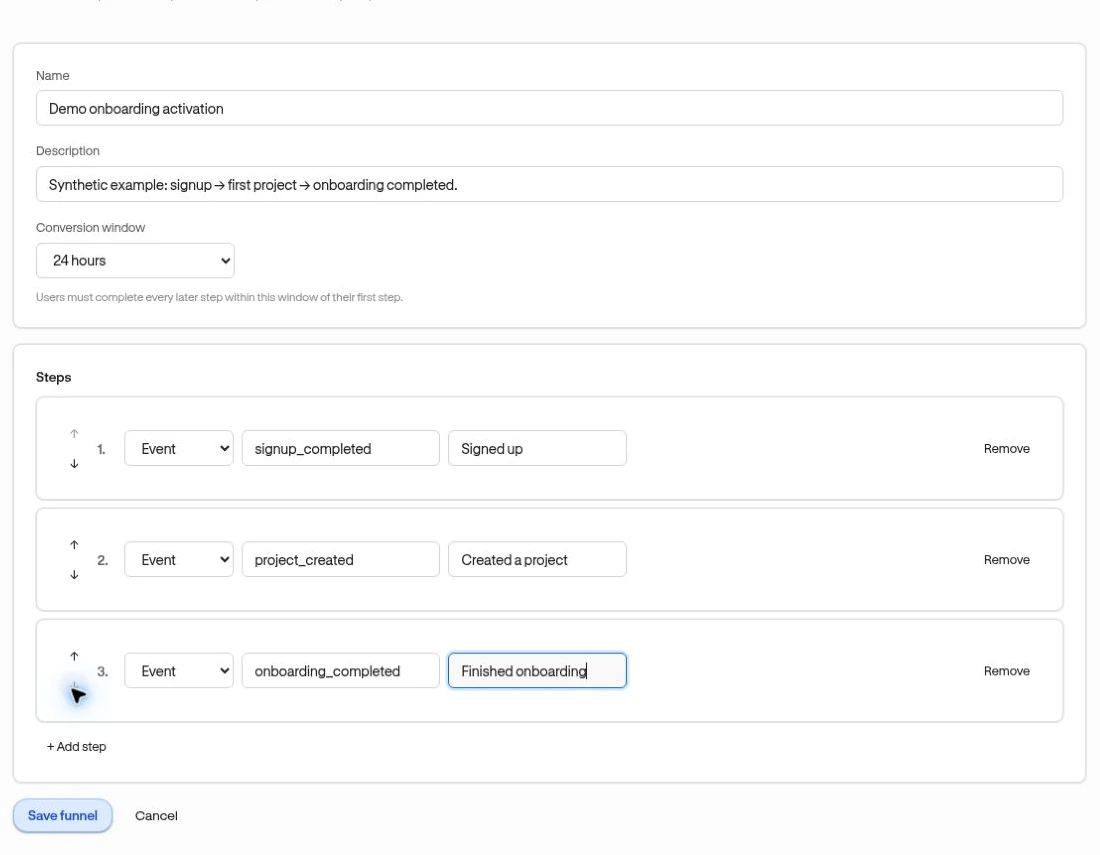
- Enter Name and an optional Description.
- Choose a Conversion window. This is the maximum time from the first step to every later step, not a separate allowance between each pair.
- In Steps, choose Event or Page for each step. For an event, use its exact recorded name. For a page, select its saved definition.
- Add a Display label (optional) when a clearer name would help your team.
- Use + Add step, Remove, and the up/down controls to arrange the order.
- Choose Save funnel.
Example
Section titled “Example”| Order | Type | Recorded event |
|---|---|---|
| 1 | Event | signup_completed |
| 2 | Event | project_created |
| 3 | Event | teammate_invited |
With a 7 days conversion window, both later milestones must occur within seven days of the user’s first signup event in the analysis range.
Verify and manage
Section titled “Verify and manage”Open the saved funnel, choose a relevant date range, and compare it with a known user’s timeline. Edit lets you change the definition and Save changes stores it. Delete removes the funnel after confirmation, not the underlying activity. Review any cards or segments that reference it first.
Next: Read conversion and drop-off.