
Build your first experience
Start with a short guide that helps someone complete one task. This walkthrough uses a fictional project-management app and points a new user toward Create project in that app.
Before you start
Section titled “Before you start”Use an Owner or Admin account. Connect your site and make sure you can open its configured domain. If you want a limited audience, create a segment first. Any example labels inside your own app will differ from this walkthrough.
Create the draft
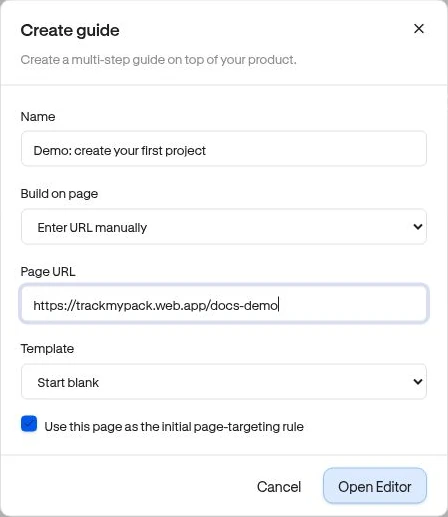
Section titled “Create the draft”- Go to Experiences → Guides and choose Create guide.
- Enter a Name, such as “Create your first project.”
- In Build on page, choose a saved Page or Enter URL manually. A manual Page URL must be on this site’s configured domain.
- Check Use this page as the initial page-targeting rule if that is the intended launch page. Review the final rule before publishing.
- Choose Open Editor.
- Edit the first step’s heading and message. Keep the instruction specific: “Create a project to organize your team’s work.”
- Choose Open live editor, allow the popup, and select the product element this anchored step should point to. See Preview and select targets.
Set up launch and publish
Section titled “Set up launch and publish”Choose Review & publish. Set the audience, page, trigger, timing, and step behavior. For an initial test, use a limited saved Segment and the intended product page. Check the summary and choose Publish now when it matches your intent. The publishing guide explains every review stage.
Confirm the result
Section titled “Confirm the result”Use a visitor who meets the saved audience and page rules. Make sure the target element is visible. Confirm the text, close control, and progression work on desktop and mobile. A draft preview confirms appearance; this normal product visit confirms delivery.