
Manage workspaces and sites
A workspace holds your team and subscription. A site holds the product activity, saved audiences, funnels, and experiences for one connected product context.
Select the right context
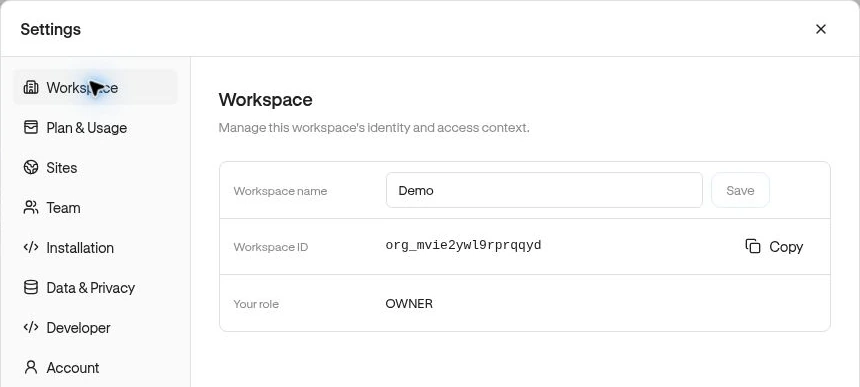
Section titled “Select the right context”Open Settings → Workspace. If you belong to more than one workspace, choose Current workspace. The page shows Workspace name, Workspace ID, and Your role. Owners and Admins can rename the workspace and choose Save.
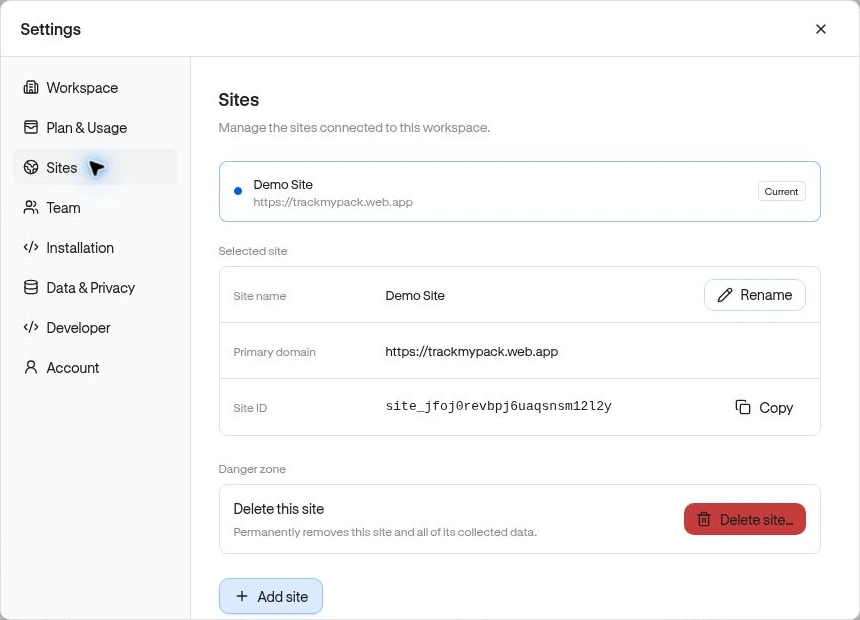
Open Settings → Sites, or click the site name at the top of the main sidebar. Select a site; Current marks the active choice. Close settings and verify that the dashboard now shows the intended site.
Create or edit a site
Section titled “Create or edit a site”Owners and Admins can:
- Choose Add site.
- Enter Site name and, when available, Primary domain (optional).
- Choose Create site. To deliver experiences and use domain-dependent features, configure the exact product origin, such as
https://app.example.com. - For an existing site, choose Rename under Selected site to edit its name and Primary domain, then Save changes.
Example: marketing pages on https://example.com and the app on https://app.example.com are different origins. Use the site’s own snippet on the product it represents. See Connect your site.
Delete carefully
Section titled “Delete carefully”Under Danger zone, Delete site… asks you to type the site name before choosing Delete site. This permanently removes the site and associated analytics data. It is different from deleting a Page definition or pausing an experience.
Account and privacy information
Section titled “Account and privacy information”Settings → Account shows your Name and Email and offers Sign out; it does not provide profile editing controls. Data & Privacy describes collection capabilities and is not a set of collection toggles. A developer must apply SDK privacy controls. Developer provides public Site ID/configuration for your integration.
Related: Team roles · Billing and capacity · Website themes.