
Understand your first results
After publishing, first check whether people saw your experience. Then check whether they interacted or finished it. These are different questions from whether they completed the product task you care about.
Review the first activity
Section titled “Review the first activity”- Open Workspace → Overview.
- Choose a Date range that includes the launch.
- Find your experience in the Experiences table. Use Search experiences, All types, or All statuses to narrow the list.
- Review Viewers, Engagement, and Completion where available.
- For a survey, open View Results from its collection to inspect answers.
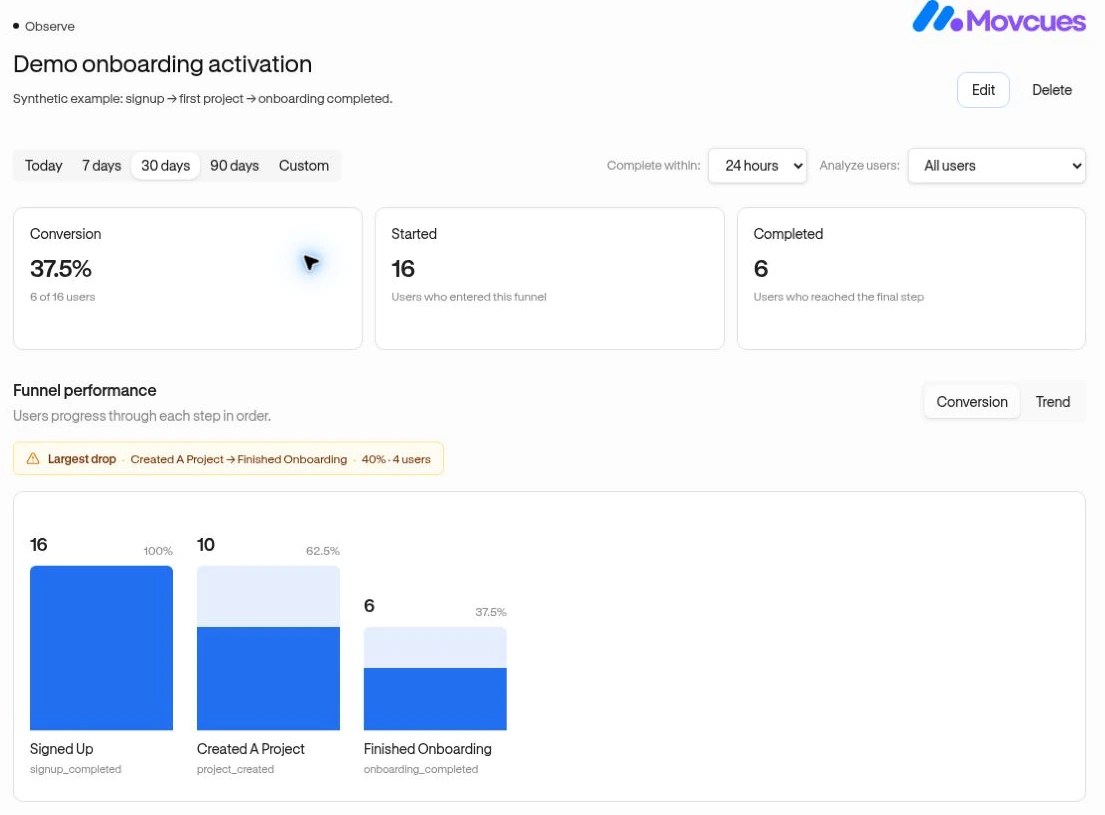
Example: guidance for project creation
Section titled “Example: guidance for project creation”A person can finish a guide without saving a project. Use guide completion to judge whether the guidance was followed. Use the custom event project_created to measure the product outcome.
Create a funnel from an earlier milestone to project_created, or add an event-based analytics card. Compare the same audience, dates, and definitions when reviewing results.
Interpret carefully
Section titled “Interpret carefully”- Zero viewers: check delivery rules before changing your copy.
- Viewers but little interaction: check placement, relevance, and whether the message gives a clear next step.
- Guide completion without the desired outcome: review the task itself and whether the outcome event is recorded correctly.
- A dash is not always zero. Some measurements do not apply to every experience type.
Goal conversion currently has no configured goal data in Overview. Use a verified event or funnel for your product milestone. Observed changes alone do not establish that an experience caused them.
Next: Improve activation or read experience metrics.