
Connect and verify your site
Connecting your site lets Movcues receive activity and display published experiences. A developer installs the SDK, the small browser script that connects your product to Movcues. You can check the connection yourself in the dashboard.
Example
Section titled “Example”Your app runs at https://app.example.com. Install Movcues there before building guidance for /projects. Installing only on your marketing website will not connect the app.
Install once
Section titled “Install once”- Select the correct site from Settings → Sites.
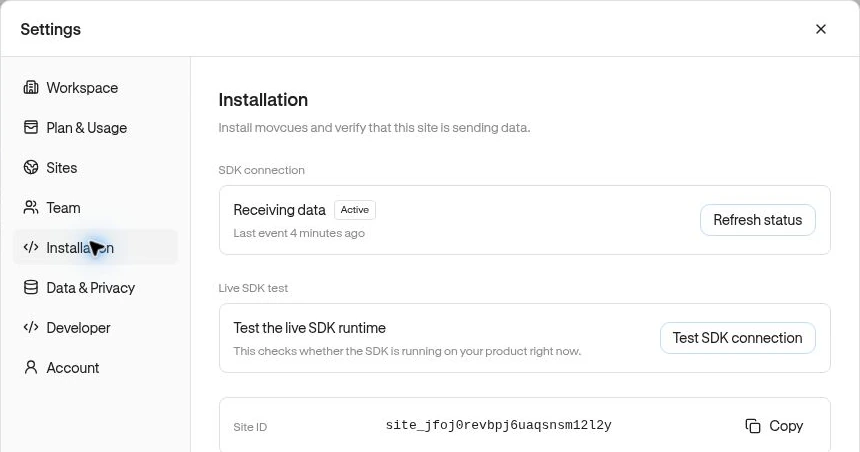
- Open Settings → Installation.
- Copy the Installation snippet and send it to your developer. It already contains this site’s Site ID.
- Ask them to install it once across the product and publish the change. The SDK Installation guide contains the implementation options.
Check the live connection
Section titled “Check the live connection”- Keep Settings → Installation open.
- Choose Test SDK connection under Live SDK test.
- Open or refresh your product in another tab while the test runs.
- Wait for SDK connected. If it expires, refresh the correct product URL and choose Try again.
Receiving data and Last event show previously received activity. The live test answers a different question: is the SDK running now? Refresh status updates the activity summary.
Confirm a product outcome
Section titled “Confirm a product outcome”Visit Observe → Sessions to inspect recorded visits. Observe → Events lists custom product events, such as project_created; it is not the list of all automatic page views and clicks. Ask a developer to add custom events for the outcomes your team wants to measure.
If nothing appears, check the selected site, the published installation, and the product’s domain. See Missing data.
Next: Build your first experience.